

With us you can invest in loans to Baltic small and medium companies. You can use automated strategies for best diversification or select individual projects manually. The minimum investment in one project is from EUR 100.
Complete your registration
Make sure to complete all the steps of registration. After you complete the registration in full you will need to wait for your account to be validated. For individuals it usually takes up to 48 hours, for companies - up to 72 hours. The following documents are required for account validation and they help us to build a trusted relationship with you and prevent illegal activity on the platform. We are a licensed financial institution and activities are subject to financial laws, including anti-money laundering laws.
Individuals
- A personal identification document (ID, passport, driving license) and a selfie (service provided by Onfido and is a step of the onboarding process)
- Personal identification document of company representative as well as of beneficial owners
- Latest version of Articles of Association
- Extract from official company register of your country
- In case the Ultimate Beneficiary Owners are not listed in the Extract, additional documentation about them is needed.
Capitalia invests its own funds in every published project in order to have very clearly aligned interests with investors. You have peace of mind that we publish only such projects where we are willing to invest our own capital as well.
Monthly repayments on 1st and 15th
Each month you receive repayments from the projects in which you have invested. All our loan contracts with borrowers have either 1st or 15th of each month as a monthly repayment date. Repayments go directly to your Investment Wallet. We highly recommend reinvesting these funds in new projects to continue growing your portfolio and increasing the level of diversification. In case you choose to withdraw funds to your standard bank account you can do it at any point. 2 transactions per month are free of charge. You can check the Account statement page to see transactions for any past period.
The importance of diversification
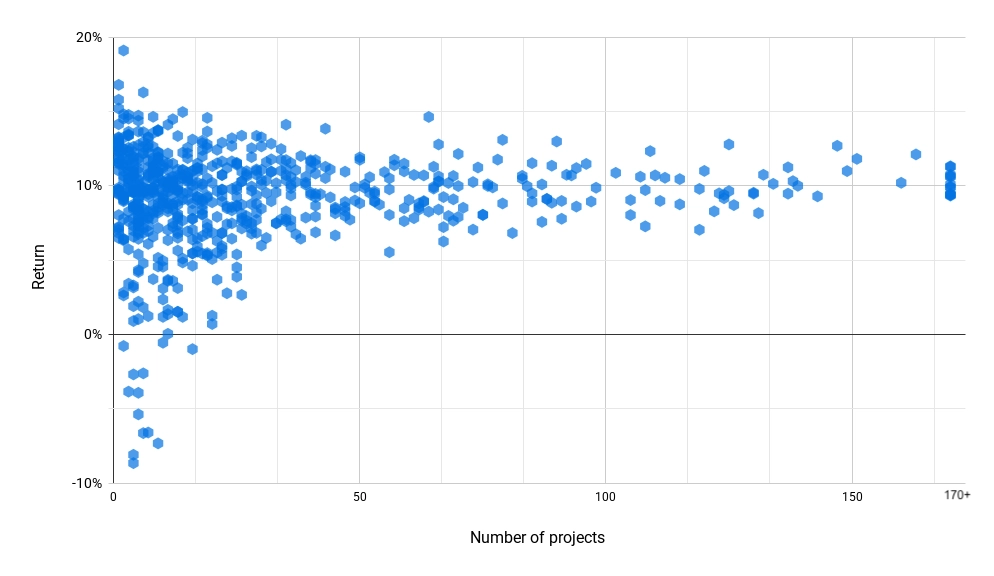
We recommend to investors to target holding 50 or more active investments and the more investments you hold, the lower chances are of any single project default to have a significant impact on your return. If you plan to invest EUR 5,000 on our platform, we recommend making 50 x EUR 100 investments. More detailed information and analysis of our investors past returns can be found in The benefits of diversification.
Taxes
In case you are investing via a company account - there are no taxes applied. For individual investors we must follow Latvian legislation of taxation and personal income tax withholding is applied. For more information, a list of countries with Tax treaties for reduced withholding tax and how to apply for it are available on our taxes page.
Non Performing Loans
Investing in loans to small and medium companies carries a risk of capital loss. Capitalia uses its vast experience, being in the business of lending to companies since 2011, in handling all the loan repayment delays, restructurings and defaults. We take care of all required steps and cover all collection costs on behalf of investors. To date we have an exceptional Loan loss rate of just 1.74%.